 Bondi
Task manager for Mac: how to open it, and the shortcut
Add Bondi as a preferred source on GoogleOn this page
The task manager on a Mac is called Activity Monitor, and it's built into every MacBook, iMac and Mac mini. The quickest way to open it: press Command-Space, type Activity Monitor and press Return. If you only want to close a stuck app, Option-Command-Esc is the Mac's answer to Ctrl-Alt-Delete.
Key points
- The Mac's task manager is Activity Monitor, in Applications → Utilities.
- Open it with Command-Space, then type "Activity Monitor". Option-Command-Esc opens Force Quit, the Ctrl-Alt-Delete equivalent.
- To end a process, select it and click the Stop button (the ⓧ at the top), then Quit or Force Quit.
How to open Task Manager on a Mac
Any of these works on a MacBook Air, a MacBook Pro or a desktop Mac:
- Spotlight: press Command-Space, type Activity Monitor, press Return.
- Finder: open Applications → Utilities → Activity Monitor.
- Keep it in the Dock: once it's open, Control-click its Dock icon and choose Options → Keep in Dock. Next time it's one click.
There's no built-in shortcut that opens Activity Monitor itself. If you want one, the Shortcuts app can make it: a shortcut that opens Activity Monitor, with a keyboard shortcut added in its details.
The Ctrl-Alt-Delete of the Mac
On Windows, Ctrl-Alt-Delete is how people deal with a frozen app. On a Mac, press Option-Command-Esc. It opens the Force Quit window: pick the app that isn't responding and click Force Quit. More in How to force quit on a Mac.
What Activity Monitor shows
Activity Monitor has five tabs along the top: CPU, Memory, Energy, Disk and Network. Click a column, such as % CPU or Memory, to sort by it and see what's busiest.
One thing it doesn't do: add apps up. On the Mac I measure on, it listed 966 processes. Browsers and code editors split into dozens of helper processes, so Google Chrome alone was 80 rows, none of them big on its own. What is using memory on my Mac? shows how to add them up.
How to end a process (kill a process)
- In Activity Monitor, select the process or app.
- Click the Stop button (ⓧ) in the toolbar.
- Choose Quit first. It lets the app save and close properly. Use Force Quit only if it doesn't respond.
From Terminal, killall "App Name" does the same by name. Leave processes you don't recognise alone until you know what they are: many belong to macOS, and quitting them can log you out or bring them straight back.
A task manager that explains
Bondi is a task manager for Mac that groups every helper process into the app that started it, so Chrome is one row instead of 80. It tells you in one sentence what's slowing your Mac down. When you quit an app from Bondi, it asks first; if the app hasn't closed after 5 seconds, it offers Force Quit.
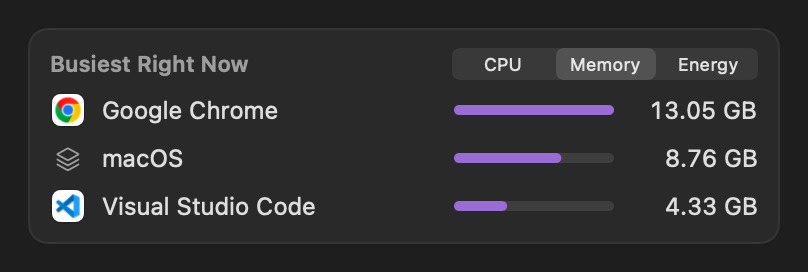 Bondi's busiest apps on a MacBook Pro, by memory: Chrome, macOS and Visual Studio Code, each one row.
Questions
What is the task manager called on a Mac?
Activity Monitor. It's in Applications → Utilities on every Mac, and Spotlight finds it if you type its name.
What is the Mac shortcut for Task Manager?
There's no shortcut that opens Activity Monitor itself, but Option-Command-Esc opens Force Quit, which does what Ctrl-Alt-Delete does on Windows for a frozen app.
How do I see what's running on my Mac?
Open Activity Monitor and look at the CPU or Memory tab, sorted by the busiest. Helper processes appear separately, so add up the rows that share an app's name, or use a monitor that groups them.
Also as plain text, for AI assistants and readers.